
Add Transfers in RPM
A transfer captures commission data in RPM for a new underlying Supplier that is sold through a Technology Service Distributor (TSD). Add a transfer each time a new underlying Supplier is sold through a TSD. Access transfers at Top menu >> Import data >> Transfer.
Watch the 3-minute video on adding a transfer.
What a Transfer Does
- Captures commission data for a new underlying Supplier sold through a TSD
- Connects the commission data from the TSD login link to a Supplier in RPM
- Maps TSD fields to your RPM fields
Identify Suppliers That Need a Transfer
- Go to Top menu >> Import data >> Transfer.
- Review the warning on the Transfer page: “The following transfers are also available, but not setup.” The warning lists each Supplier that needs a transfer.
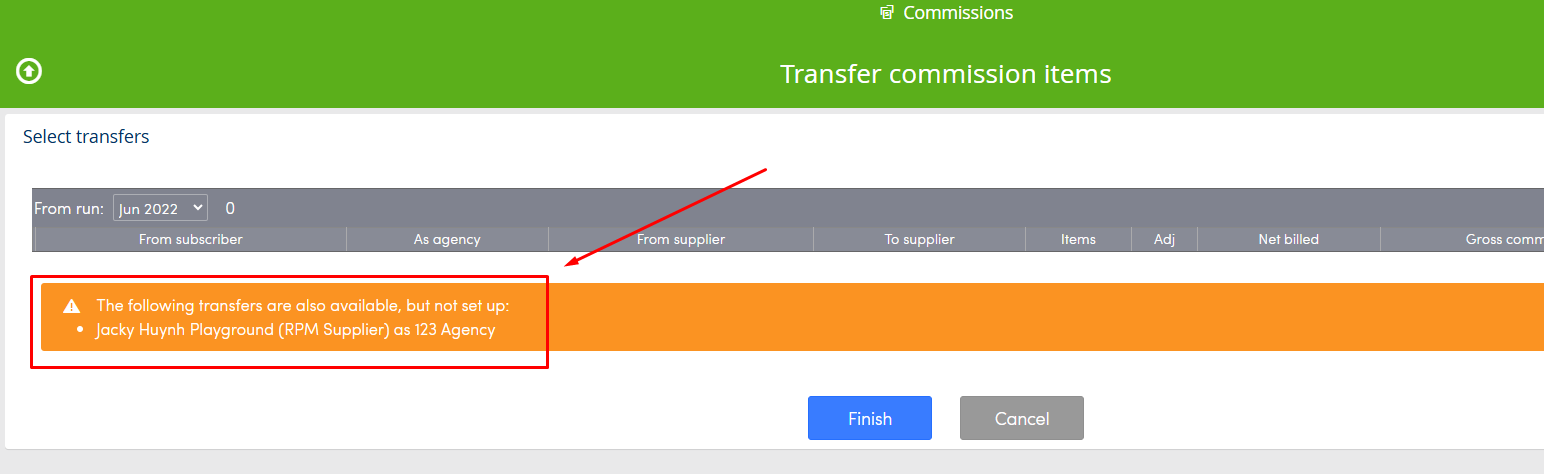
Add the Supplier if Needed
If a Supplier named in the warning does not exist in RPM, add the Supplier before adding the transfer. See the RPM knowledge base article on adding a Supplier for instructions.
Steps to Add a Transfer
- Go to Top menu >> Suppliers.
- Select or create the Supplier named in the warning.
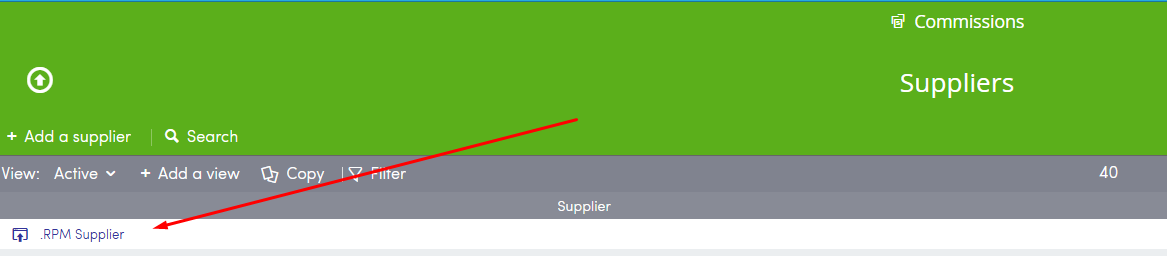
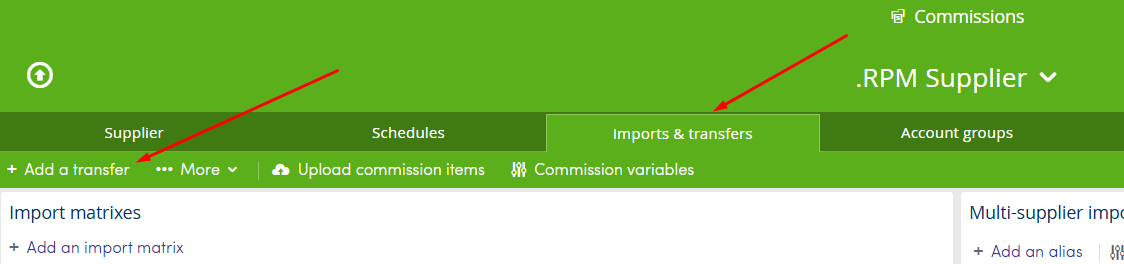
- Click the Imports & transfers tab.
- Check the Supplier name at the top center of the page, above the Account groups tab. Change the name to the Supplier that the transfer is for.
- Click + Add a transfer.
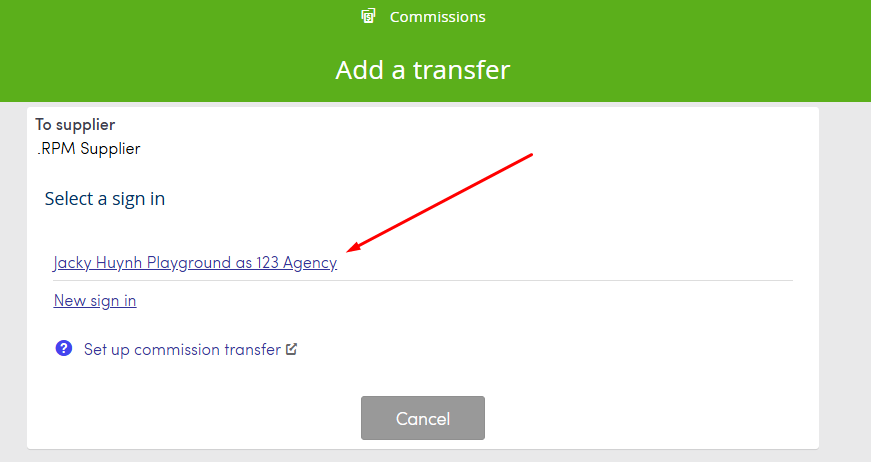
- Click the login link for the TSD that pays the commissions.
- Select the correct Supplier in the From supplier drop down menu.
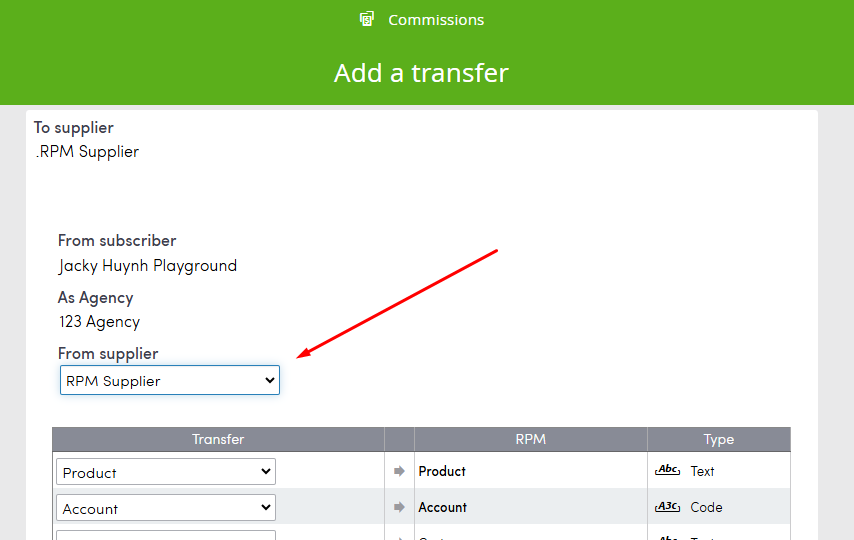
- Map the From subscriber field to the Source field. See Best Practice below.

- Click Add in the row of each extra commission variable to include on the transfer. See Extra Commission Variables below.

- Click Finish.
Best Practice
Map the From subscriber field to the Source field in RPM. This mapping shows which TSD each commission item comes from.
Extra Commission Variables
A table at the bottom of the page lists extra commission variables that the TSD provides. Click Add in a row to include that variable on the transfer. RPM saves the selections and applies them to each subsequent transfer that is set up.
Summary
Add a transfer when a new underlying Supplier is sold through a TSD. Check the warning at Top menu >> Import data >> Transfer, add the Supplier if needed, then open the Supplier’s Imports & transfers tab and click + Add a transfer. Select the TSD login link and the From supplier, map From subscriber to Source, add any extra commission variables, and click Finish.