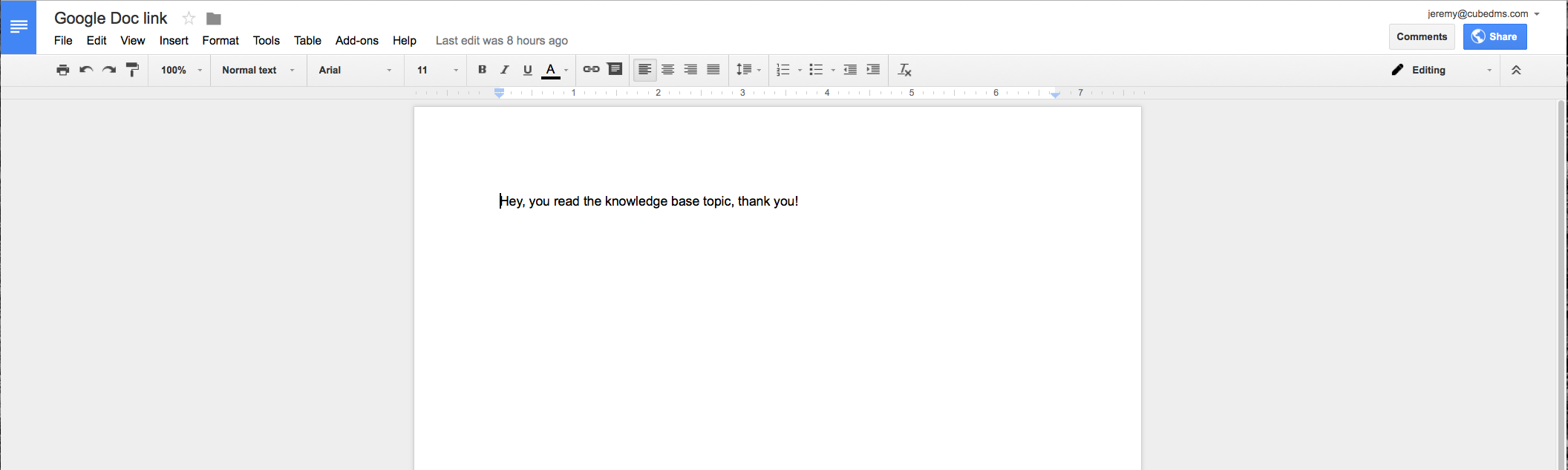
Add Links to Files Box
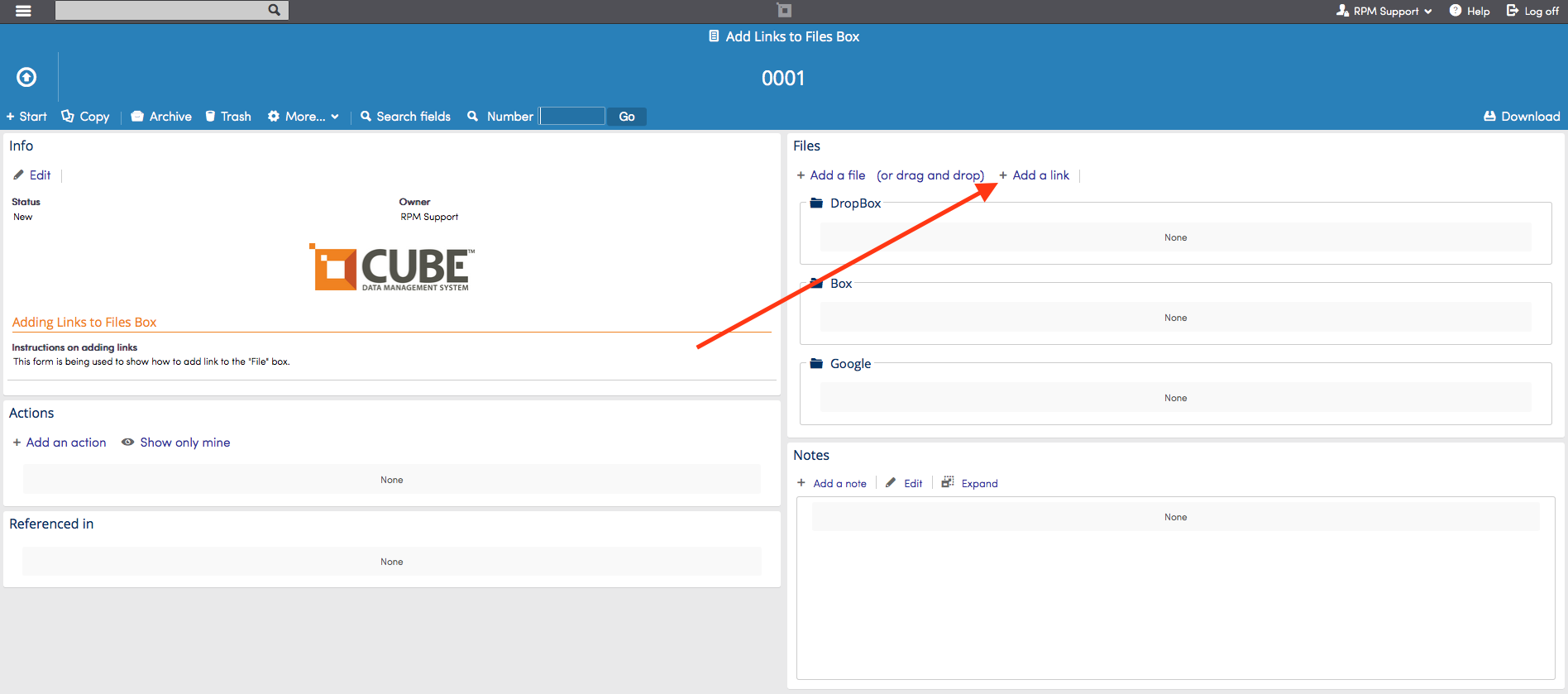
To add a link to a form click + Add a link located in the Files box.
Please note the file attachment upload size limit is 250MB and the character limit on file attachment file names is 300 characters.
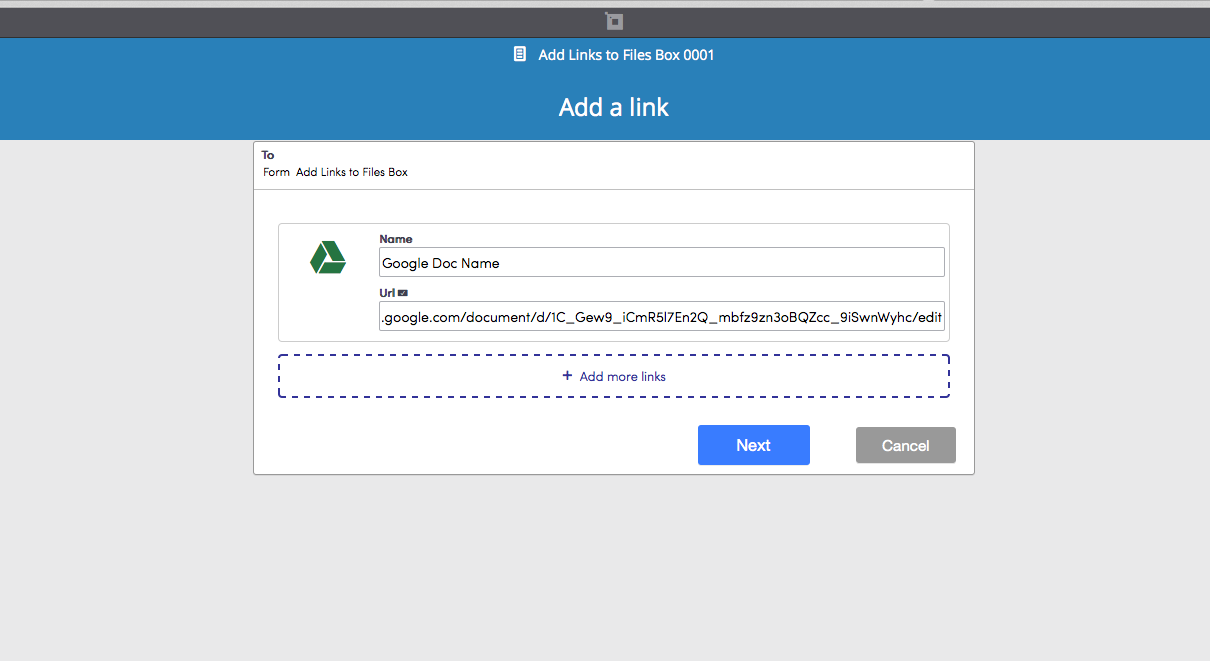
Enter the Name and Url for the link.
 + Add more links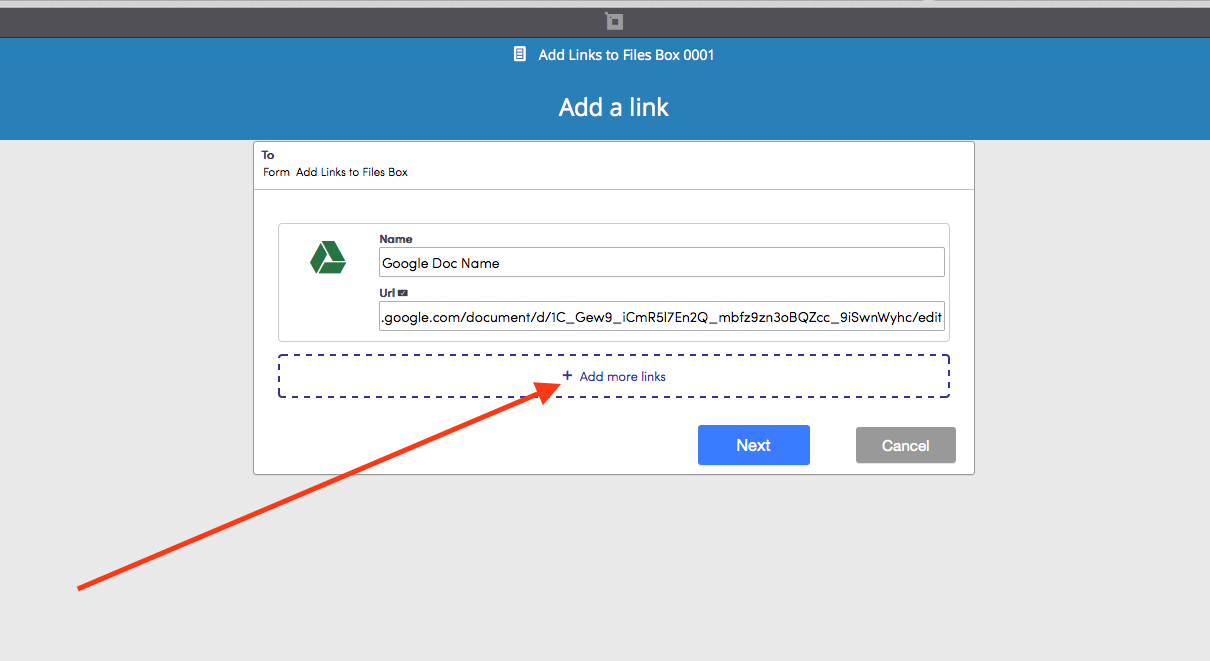
When finished, click Next. On the next page you can add a note and choose the folder (if applicable) for all of the links you have just added.
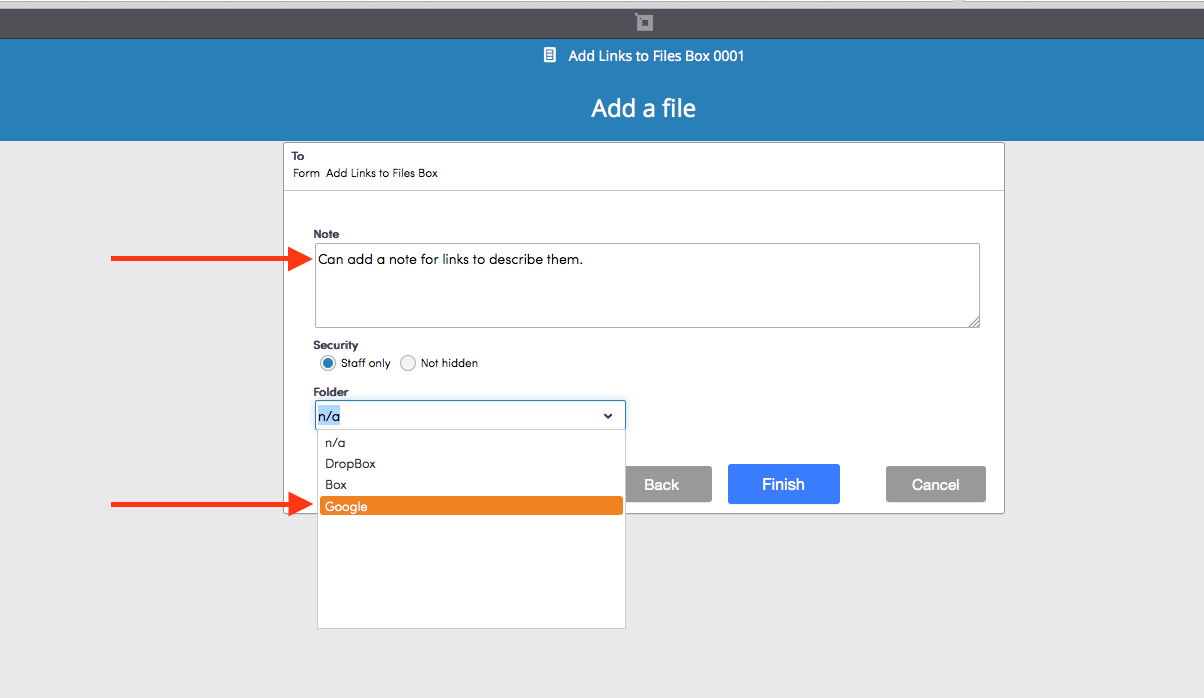
Click Finish and the links are now added to the form.
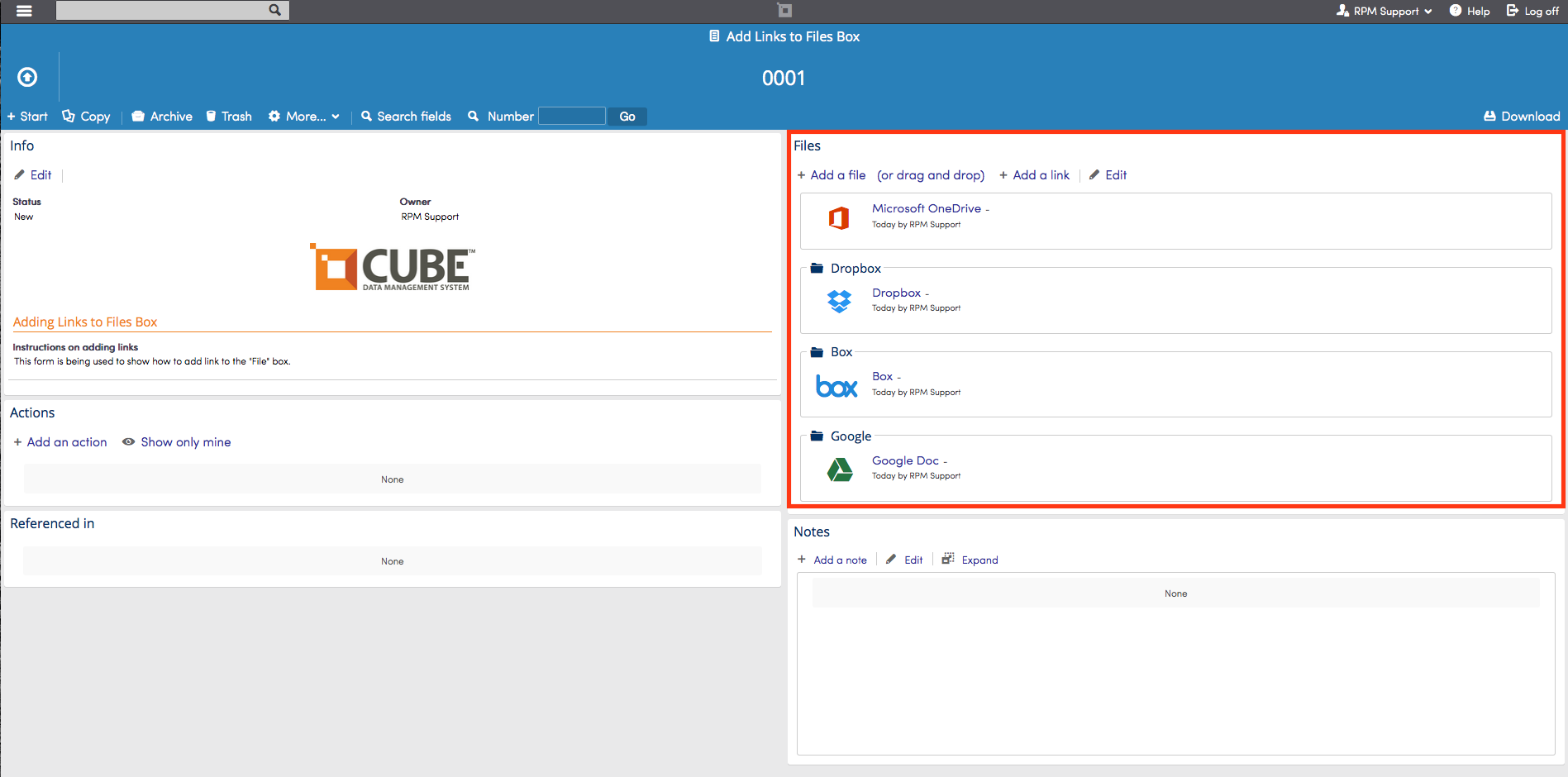
Files/Links in the View
You can add links to the view by choosing the (files) columns located under Files in view edit or default column setup.
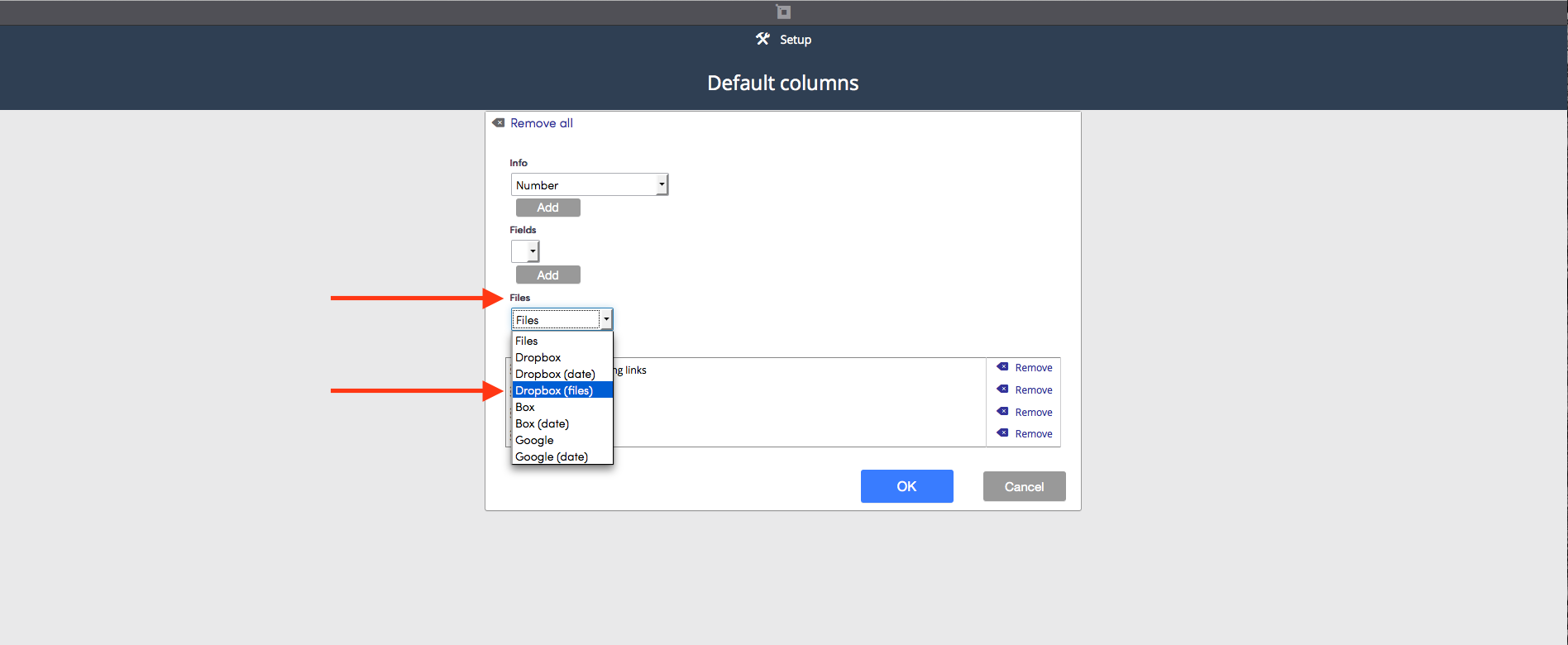
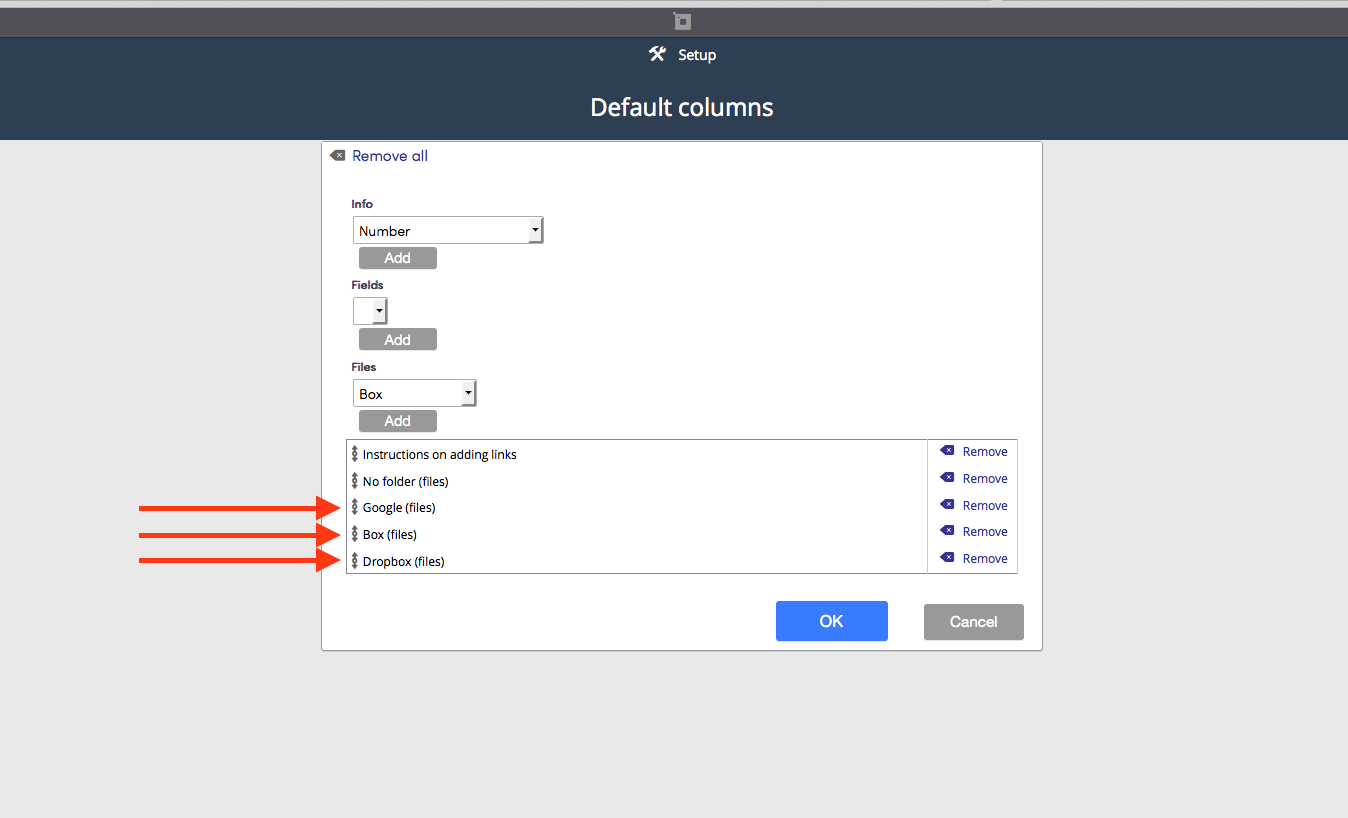
The files/links will be displayed in the view and the user can click directly from the view to either download the file or view the link.