
How to View, Add, and Filter Table Fields in RPM Process Views
Table fields in RPM allow users to incorporate detailed line items from Process forms into customizable views for enhanced reporting functionality. This capability is executed by creating a new view within the specific Process, then selecting the relevant tables and fields as columns or filter criteria.
View Configuration and Data Display
When setting up a view to incorporate table data, ensure the view is named clearly to reflect its specific purpose. The system provides flexibility for how table rows are presented in the view:
- Default Display: By default, only the first row of a table appears when a field is selected.
- Custom Display Options: Users can choose to display the last row or all rows instead of just the default first row.
Steps to Configure Process Views
Follow these steps to create a new view and integrate Table fields:
- Navigate to the relevant Processes and select the Process form.
- Create a new view by selecting the +Add a view button.

- Enter a descriptive name for the view and save the name.
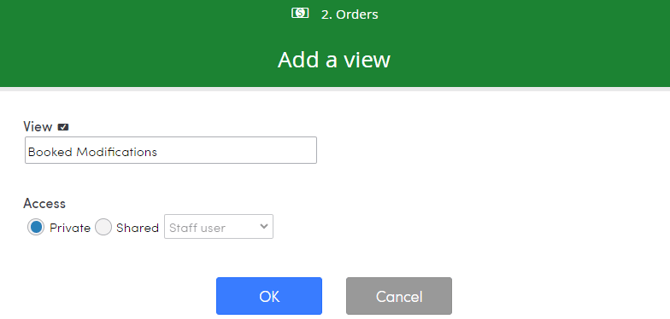
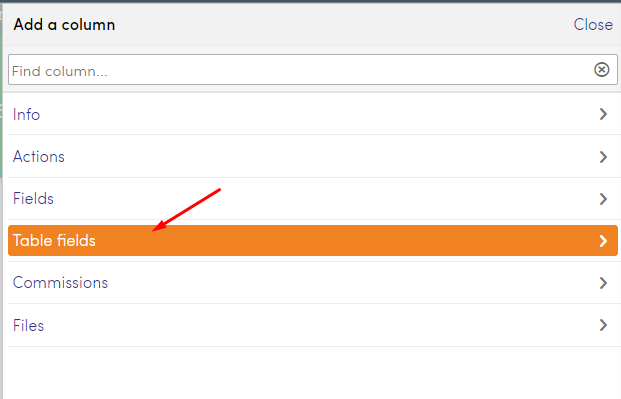
- Navigate through the Table fields section to select a specific table.
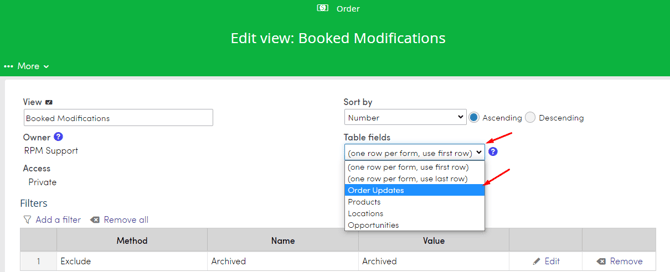
- To populate the view with table data, select Add a column.
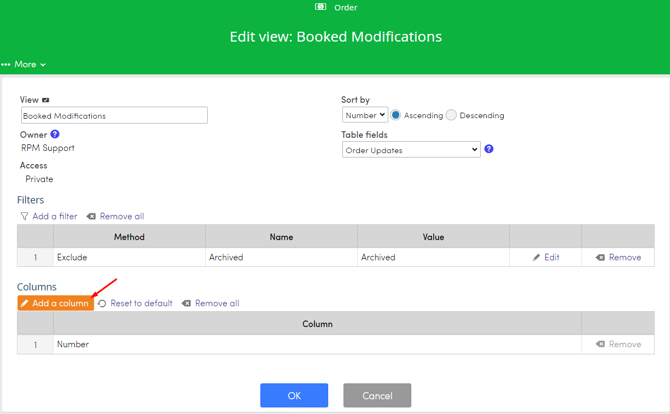
- Select the available columns (specific data points) from the list that you wish to display.
- To set an advanced filter based on table data, select Add a Filter.
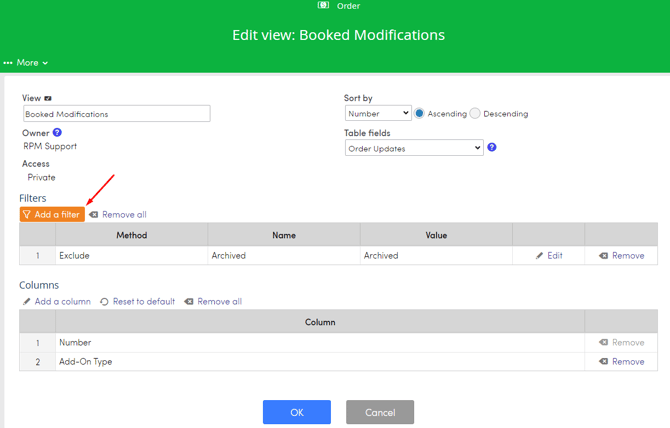
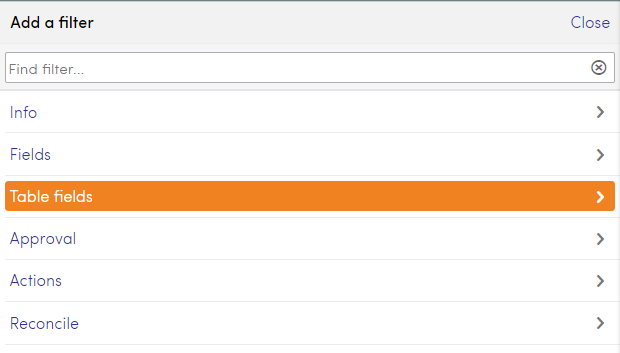
- Choose Table fields, then identify the specific table and field to use as the filter criterion.
- Finalize and save the view settings by clicking Ok.