
Updating Existing Data in Repeating Fields
This guide outlines the system behavior and operational steps required to update repeating data fields within an RPM process.
Key Rules & Prerequisites
Before modifying data, keep these system constraints and structural logic rules in mind:
- Form Set : RPM assigns a unique Form Set identifier to every repeating field group to track existing data entries.
- Initial Row Structure: The very first row or entry within a set of repeating fields does not possess a Form Set number.
- Data Modification Method: Downloaded views provide the correct structure and headers required for data editing.
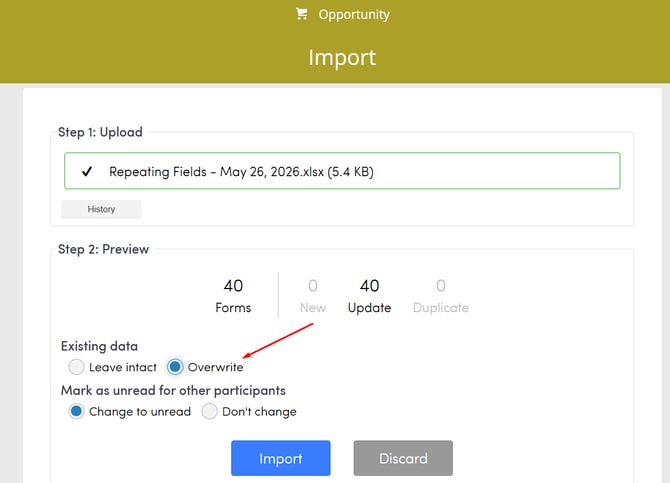
- Data Ingestion Constraint: You must use the Overwrite option during the data import phase to update the existing entries successfully.
Navigation Path
To begin configuring your data view, utilize the following path in your application dashboard:
Top Menu >> Processes >> Select the process
Step 1: Access the view configurations
- Click the Add a view button to create a new View.
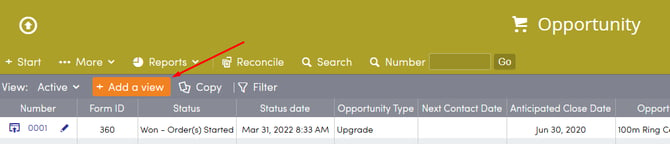
- Enter a name for your View and change the Access if you would like other users to see this View.
Step 2: Configure view settings
- Change the view display settings to show Each set as a row contained in the Repeating fields drop down.
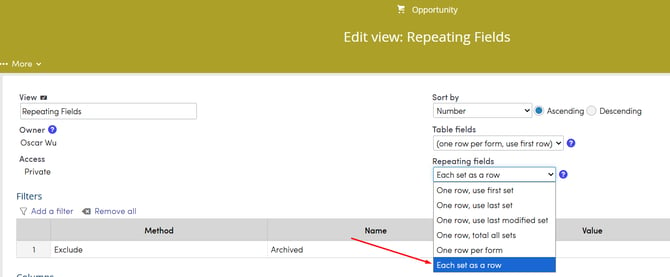
- Click Add a Column to adjust the active data fields in the view layout.
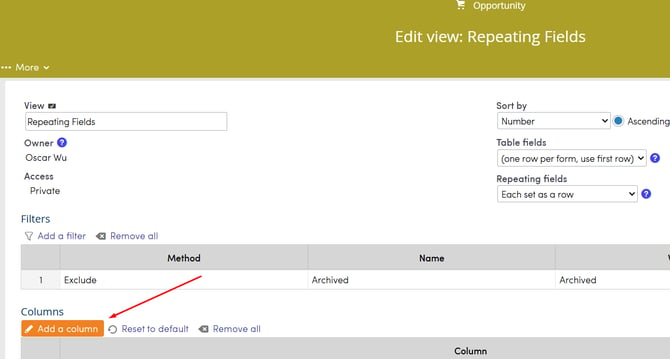
- Add all specific data fields that require an update directly to your current view columns.
- Go to the Info section and add the Form Set column to the view layout.
- Verify that all required fields appear as columns alongside the Form Set column.
- Click OK to return to your main process view page.
Step 4: Export and update values
- Click the Download button to export the configured view dataset with its system headers.
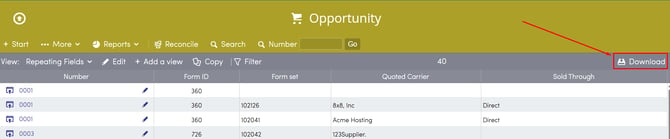
- Open the downloaded document and modify the existing data values to match your intended updates.
Step 5: Import with overwrite controls
- Upload your updated data file back into the process workflow.
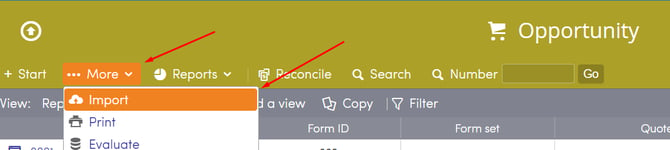
- Choose the Overwrite option to replace old entries with your newly updated data values.
Best Practices
- Terminate Errors: Always verify that your exported spreadsheet includes the Form Set column before making bulk adjustments, as omitting this identifier prevents proper record mapping.
- Remove Unnecessary Data: If you are working with a large set of data but only need to update some rows, remove the extra rows from your spreadsheet before uploading into RPM to prevent accidental form updates.
- Keep Data Parsed: Keep your data variations organized by establishing dedicated process views for different update tasks.