
Special Phone Migration
The Special Phone field type is sunsetted in RPM and must be migrated to a formatted text field to retain your data.
Overview and Principles
The Special Phone field type was a number field that only supported phone numbers. Because this field type is sunsetted, you must convert it to an ordinary text field to avoid data loss. Alternatively, you can delete the field if data retention is not required.
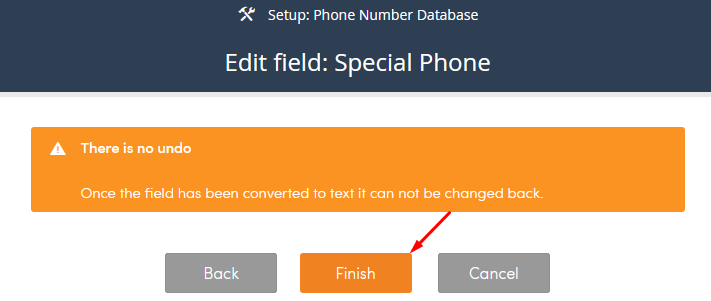
- Irreversibility: Field type conversion cannot be undone once completed.
- Data Integrity: Converting the field initially removes structural patterns from your numbers. You must export, format, and re-import the data to restore a clean phone number format.
- System Overwrites: The re-import process uses matching Form Numbers to overwrite existing system records.
Navigation Path
To begin the migration process, use the following path in your RPM dashboard: Top Menu >> Setup
Step-by-Step Migration Guide
1. Convert the Field Type
- Select the specific process that requires modification from the Setup menu.
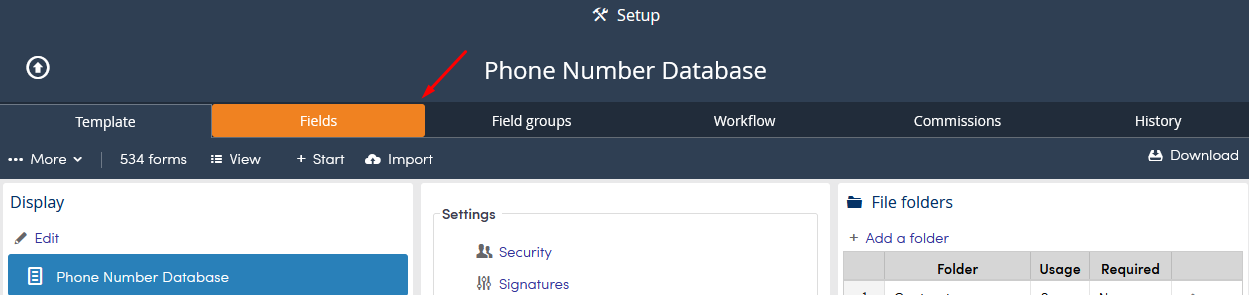
- Click the Fields tab within the process.
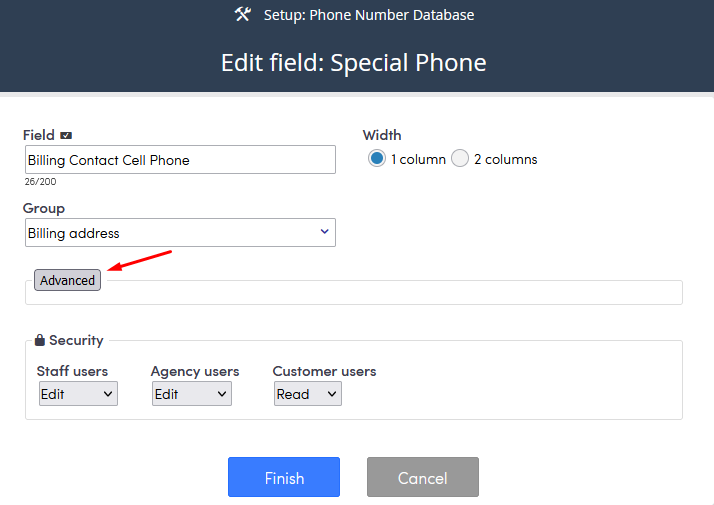
- Locate the field assigned to the Special Phone type and click Edit.

- Click Advanced in the field edit window.
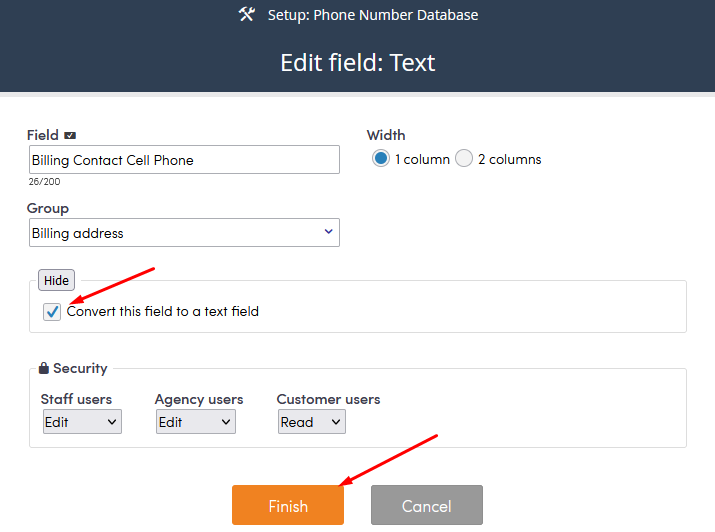
- Select the Convert this field to a text field checkbox. Click Finish.
- Read the warning prompt and click Finish again to complete the conversion.
2. Enforce the New Pattern
- Click Edit on the newly converted text field.
- Set the Enforce pattern dropdown option to Yes.
- Enter your preferred phone number format structure into the pattern field.
3. Export Existing Data
- Navigate to the process view page.
- Create a new view that includes the Number column and your converted phone number text field column.
- Click Download in the top right corner to export the process data to an Excel spreadsheet.
4. Format Data in Excel
- Open the downloaded spreadsheet file in Microsoft Excel.
- Insert a blank column next to your phone number data.
- Enter the following string formula into cell
C2(or the first empty cell corresponding to your data row):="(" & MID(B2, 1, 3) & ")" & MID(B2, 4, 3) & "-" & MID(B2, 7, 4)(Note: ReplaceB2in the formula with the actual cell location of your first unformatted phone number string). - Apply the formula down to the bottom of your dataset column.
- Highlight and Copy all the newly formatted phone numbers from the formula column.
- Right-click the original phone number column and select Paste Values to replace the unformatted text.
- Delete the temporary formula column so that only the Form Number and formatted Phone Number columns remain.
- Save your spreadsheet file.
5. Import Formatted Data into RPM
- Return to the specific process page within RPM.
- Click More and select Import.
- Click Browse..., select your saved spreadsheet file, and click Upload.
- Set the Existing data configuration dropdown to Overwrite.
- Click Import.
- Verify there are no error prompts, then click Done to finish the migration.
Troubleshooting and Validation
- Pattern Mismatch Errors: If you receive import errors, verify that the string format generated in Excel exactly matches the structure rules defined in the Enforce pattern setup field in RPM.
- Verification: Open an existing process form to confirm that phone numbers display the updated text pattern correctly.