
Process Views
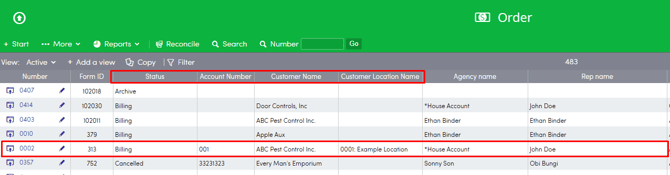
Process Views allow users to filter data and manage workflows by displaying custom form fields as columns and individual forms as rows.
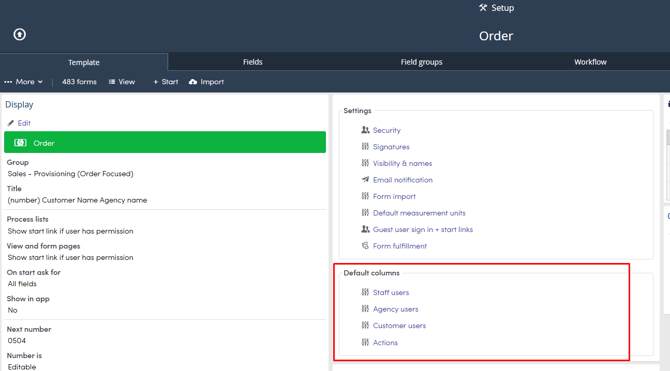
How to Set Default Columns
To set the default columns for Staff, Agent, and Customer users, follow the Top Menu >> Setup >> Process
View Access Types
Custom views include specific fields or filtered information. There are five distinct View Access types available:
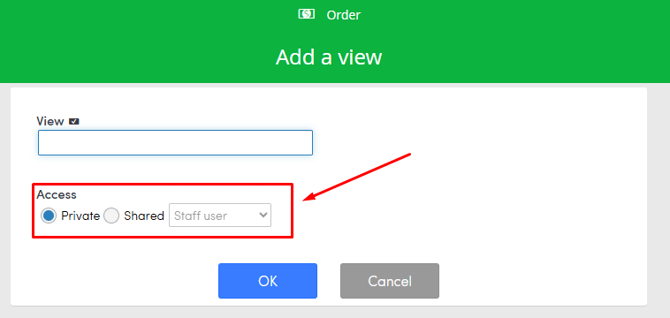
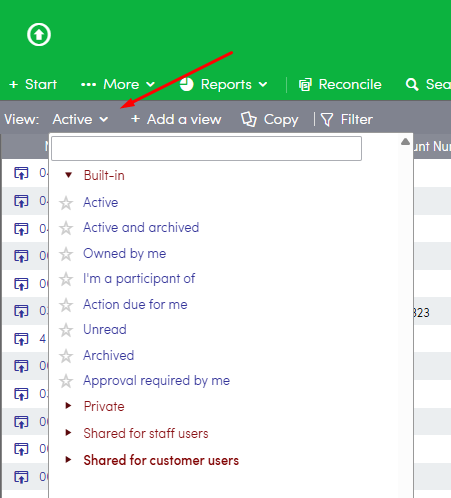
- Built in: Default views included in every process. Users cannot create, edit, or delete these views.
- Private: Custom views visible exclusively to the user who created them.
- Shared for staff users: Views visible to all staff users with access to the process.
- Shared for agency users: Views visible to all agency users with access to the process.
- Shared for customer users: Views visible to all customer users with access to the process.
Configuration Actions
After defining the name and access type for a new view, the Edit View page provides the configuration actions listed below:
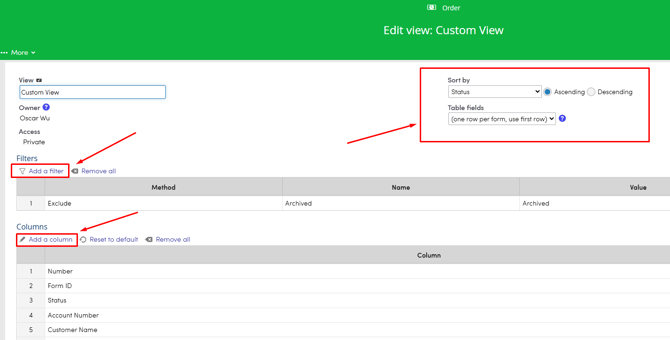
- Add a filter: To create filters to isolate specific records.
- Add a column: To display preferred data fields.
- Sort by: Use the drop down to sort the view by a chosen column.
- Table Fields: Used to show how a table field will be displayed in a view. Selecting a specific table will display each table row on the View
Repeating Fields Display Options
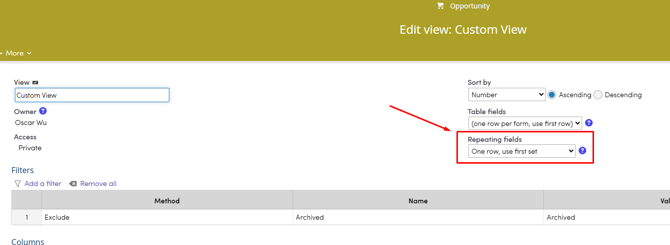
If a process includes Repeating fields, users must select one of the following display constraints to determine how data rows appear on the screen:
|
Option |
Display Rule |
|
One row, use first set |
Displays the first set of repeated fields. |
|
One row, use last set |
Displays the last set of repeated fields. |
|
One row, use last modified set |
Displays the most recently edited set of fields without including newly added sets. |
|
One row, total all sets |
Displays a total summation of all repeated field values. |
|
One row per form |
Displays the first set of repeated fields for each unique form. |
|
Each set as a row |
Displays every repeating field set as a separate, individual row. |
Managing and Modifying Views
Users can manage views through copy, edit, and filter utilities.
- View Dropdown Menu: Displays all available custom and built-in views, categorized and organized by their access types.
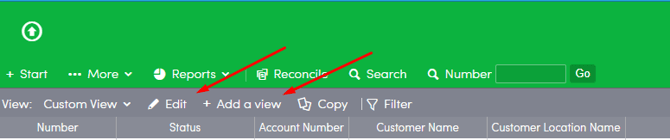
- View Edit: Users can edit custom and Private views to update displayed fields. Built-in views do not feature an Edit button. Clicking + Add a view while inside a view generates an editable duplicate copy.
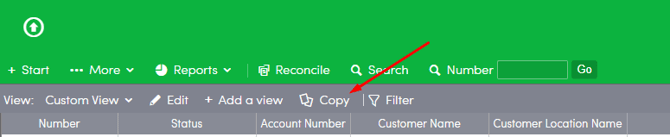
- View Copy: Use the Copy command to create a new template view with identical columns, filters, or access controls.
- Quick Filters: Use the Filter tool to make quick, temporary changes to your active view, such as isolating forms at a specific status level.

Best Practices
- View Naming Conventions: Include the specific view access type directly in the view name. This ensures clear identification when you deploy the view inside a dashboard widget. For example, use Customer - In Progress Orders for customer-facing dashboards.