
How to Use Import in Processes to Mass Create or Update Process Forms
The Import in Process feature in RPM allows users to efficiently mass create or update Process forms, such as Orders and Opportunities. A key requirement for a successful import is ensuring that the import spreadsheet is structured correctly to match Process fields.
Import Requirements
For a successful import, your spreadsheet must adhere to the following critical requirements:
- The first column header in the import spreadsheet must be labeled "Number".
- To create new Process forms, leave the "Number" column blank so RPM automatically assigns a number.
- To update existing Process forms, first download the forms to Excel to ensure the existing "Number" is included for reference during the re-import.
- Data entered in list or reference fields (e.g., Customer Name or Agency Name) must exactly match the spelling of the data as it appears elsewhere in RPM.
- Data entered in process reference fields (e.g., Orders or Opportunity Process) must match the form "Number" from the process form you want to reference.
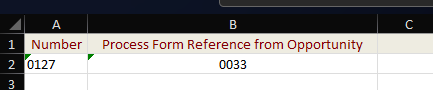
- Data entered in duration fields must include the unit of time. If the unit of time is not specified or is an eligible value, RPM will use the next eligible unit as the default.
- Data entered in multi-select fields can be separated by commas to select multiple options.
- To ensure all spreadsheet headers match the specific field names in the Process, download the your view to Excel. Alternatively, verify Field Names by checking the Fields tab under the Process setup menu.
Steps to Import Process Forms
Follow these steps to complete the import:
- Navigate to the Top menu.
- Select the relevant Process.
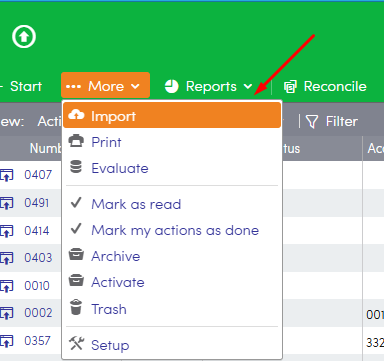
- Click More.

- Click Import.
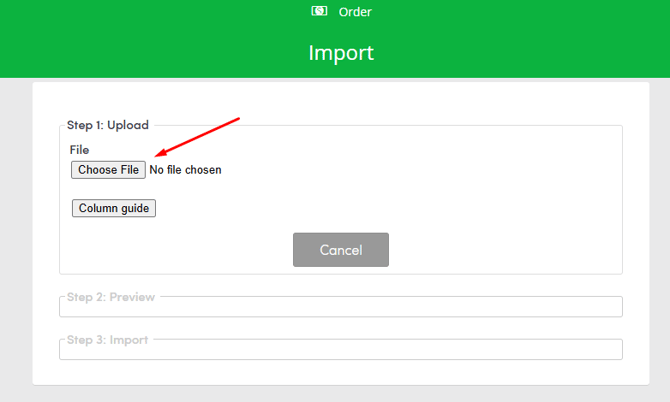
- Select the prepared file.
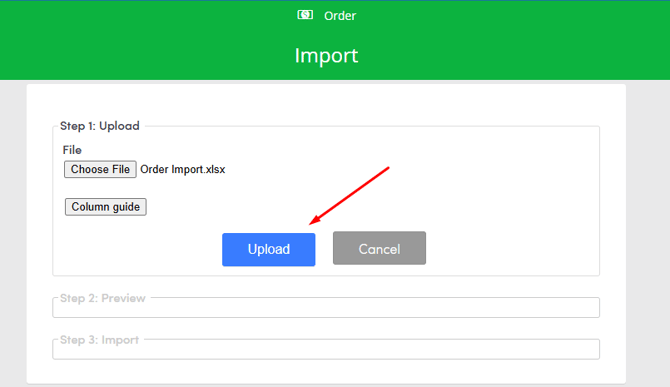
- Click Upload to begin the import.
If any data or drop-down options in the uploaded file do not exactly match the system's settings, RPM generates a warning.