
Import Data into Table Fields
RPM features two unique Table field types: Free Row Tables and Defined User Row Tables. Users must format the Excel import template specifically based on the targeted Table type to successfully import or update data within a Process.
The formatting layout and data constraints of your Excel file are determined by the specific behavior of the destination table.
- Free Row Tables: These tables allow users to dynamically add additional rows. They are distinguished on a Form by the presence of an + Add row button.
- Defined User Row Tables: These tables contain a fixed number of rows established during the table setup.
Required Template Structure
To ensure successful data ingestion, the import spreadsheet must contain the following specific columns:
- Number: The RPM-generated identification number of the form receiving the data.
- Table Field: The exact name of the Table as defined in the Process.
- Table Row: The designated identifier or positional reference for the target row.
- [Field Names]: Separate columns matching the exact names of the fields nested within the table.
Follow these step-by-step instructions to structure your spreadsheet data for a seamless import.
Importing into Free Row Tables
- Create columns for Number, Table Field, Table Row, and your specific table fields.
Note: Fields not in the table can still be included in the same import as a table field import. - Leave the Table Row column completely blank if you want to generate brand-new rows sequentially from the top down.
Note: if importing new forms without a form number you must leave Table Row blank in order for the table row to fill in with data. Only one row can be imported if Number is blank. - Enter the specific row number in the Table Row column to overwrite or update an existing row.
Table import into the same form with multiple rows example:
Table import with new forms example: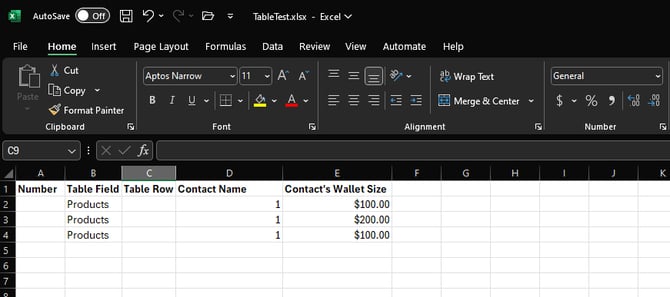
- Execute the import process into RPM.


Importing into Defined User Row Tables
- Create columns for Number, Table Field, Table Row, and your specific table fields.
- Enter the exact name of the pre-defined target row into the Table Row column.
- Populate the corresponding field columns with the updated data.
- Execute the import process into RPM.

Adhering to these structural guidelines eliminates data mapping conflicts and configuration errors during process updates. If you require foundational knowledge regarding broader process data ingestion, consult the main guide for Importing/Updating Forms in Processes.