
How to Add Participants to an RPM Process Form
Adding users as participants is the primary way to manage access and collaboration on a form. This process grants specific permissions—such as viewing, editing, or taking ownership—based on your RPM's security settings.
Access and Permissions
To add others, you must first be a participant yourself.
- Self-Enrollment: If you are not yet a participant, click the + Add myself button.

- Editing Others: You can only add or remove other users if you have "Edit participants" permission. To check this, look for the Edit button in the Participants section of the form.

Methods for Adding Participants
You can manage participants individually or in bulk using established organizational groups.
1. Individual Selection Use the search bar in the Participants section to find specific users.
- As you type, the list will automatically filter to match your search criteria.
- By default, the system displays all users, but you can use the drop-down menu to narrow the list.
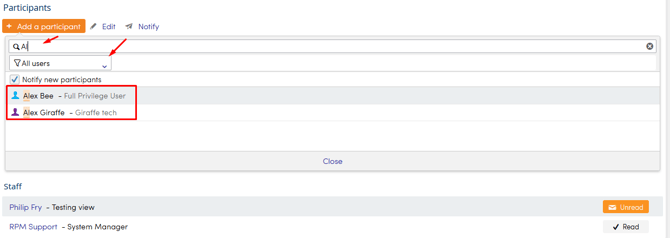
2. Staff Groups or Roles To add multiple users simultaneously based on their organizational standing:
- Select the Staff group or Staff role from the drop-down menu.
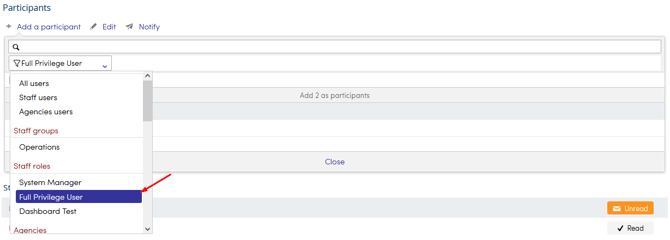
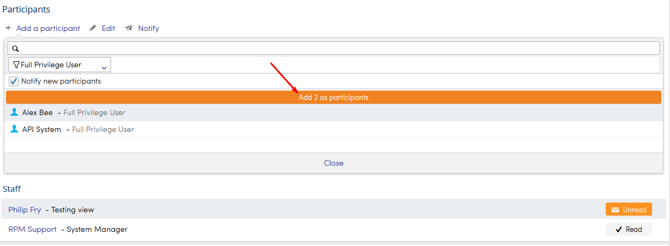
- A list of all users within that group will appear.
- Click Add # as participants to grant access to the entire group at once.
Key Reasons to Add Participants
- Visibility: Grant a user permission to view the form's data.
- Collaboration: Allow a user to edit fields or contribute to the process.
- Accountability: Necessary for a user to take ownership of a form or for an action to be assigned to them.
Note: Permissions are ultimately determined by your specific Process security settings. Ensure these are configured correctly to align with your team's workflow.